
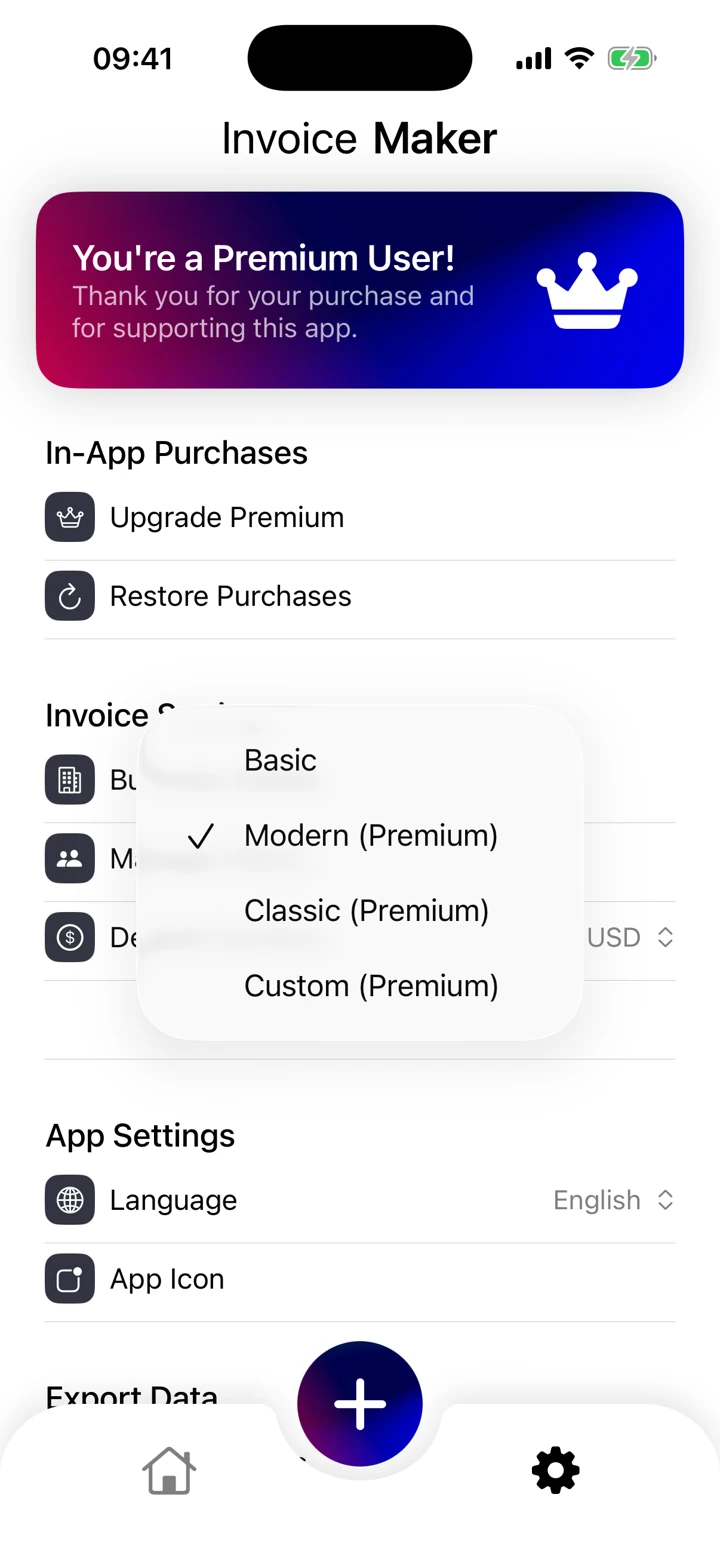
Compare the app’s invoice templates
Use Kivana’s actual template-selection screen to compare layouts before choosing your iPhone invoice app. Look for room for your descriptions, a readable total and clear business branding. Apply the layout to an invoice and review the PDF; current template availability and premium requirements are shown in the app.
Choose a layout for the job
A simple service invoice works well for project fees. An hourly invoice should make hours and rates easy to compare. A product invoice should show quantities and unit prices. Leave enough space for meaningful descriptions instead of squeezing everything into one line.
Brand it without hiding the essentials
Your logo and a consistent color can make an invoice recognizable. Keep contrast strong, text readable, and the total prominent. Invoice Maker’s App Store listing describes logo customization and professional templates; some options may require an in-app purchase.
Choose a template in the app
Open the template selection screen and choose the style that makes your item descriptions, business information and total easy to read. Review the finished invoice after applying a template. Keep the chosen layout consistent for repeat clients. Some options may require an in-app purchase.
These guides explain everyday invoicing workflows. Examples are illustrative; check the rules that apply to your business and location.
View Kivana on the App Store ↗